
ParentPay is still a popular choice for UK schools in 2026. It is a safe and easy way to manage school payments online.
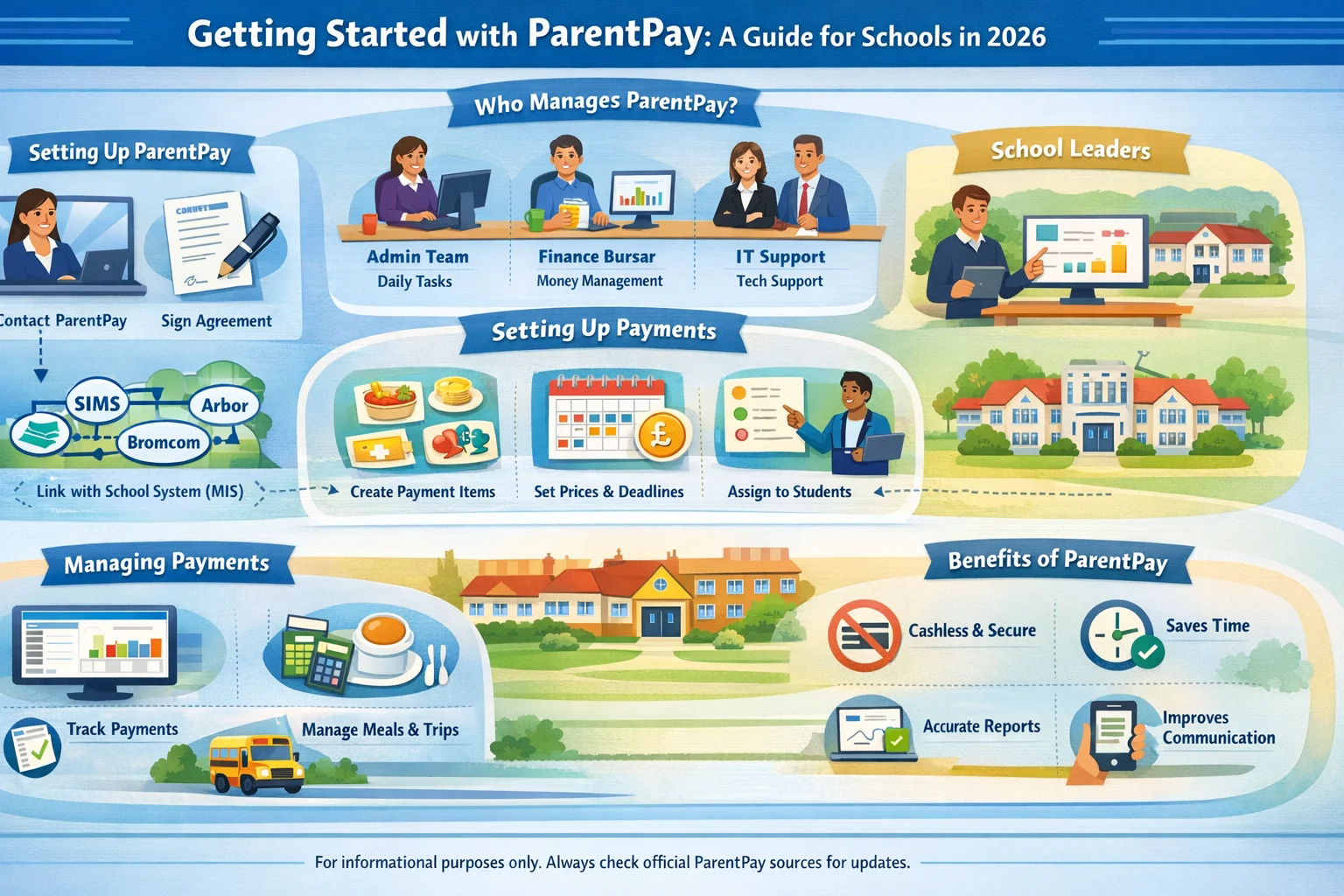
To start using ParentPay, schools contact the company and sign an agreement. After that, staff set up the system step by step. They connect it with their school system (MIS) so student data updates automatically. Then they check student and parent details and create payment options like meals, trips, and clubs.
Once everything is ready, schools can track payments easily, handle less cash, and communicate better with parents. All of this is managed from one simple dashboard.
This guide speaks directly to school admins, office teams, bursars, finance staff, and teachers who support payments. It uses simple English and clear steps to explain the full process from start to everyday use.
Who Manages ParentPay in a School?

Schools use ParentPay best when everyone knows their job. This helps avoid confusion and makes everything run smoothly.
The school office staff (admin team) do most of the daily work. These are the people who answer calls, welcome visitors, and handle paperwork. They log into ParentPay often. They add new payments, check if parents have paid, send messages, update student details, and fix small problems. Because they talk to parents a lot, they understand the system very well.
The finance team (or bursar) looks after the money side. They check payments, match them with bank records, and make reports. They also handle refunds and special cases. The bursar may set rules, like when payments are due or what happens if someone is late. They use reports to help with budgets and planning. Their job keeps the school’s money accurate and organized.
If the school has IT support, the IT person helps with technical issues. They connect ParentPay to systems like SIMS, Arbor, or Bromcom. If something stops working or login problems happen, they fix it or contact support. They also make sure staff follow safety rules, like using strong passwords.
The school leaders (headteacher, deputy, or business manager) make the big decisions. They approve new payments, like trips, and check monthly reports. They decide school rules, such as going cashless or encouraging parents to use ParentPay.
When everyone has a clear role—admins for daily tasks, finance for money, IT for technical help, and leaders for decisions—the system works well. It also makes work easier for everyone.
Initial Setup Process (School Registration & Onboarding)

Setting up ParentPay starts with reaching out to the company. Schools often do this when they want to stop using cash and cheques and make payments simpler and safer.
Creating a School Account with ParentPay
The process begins by contacting ParentPay. Many schools go to the official website at parentpay.com to request a free demonstration or quote. During the demo, ParentPay experts show the dashboard, explain features, and discuss costs, which are usually small fees per transaction or a set amount. Schools ask questions about security, support, and how it works with their current systems.
When the school chooses ParentPay, they sign a service agreement. This document covers terms like fees, data protection, and support levels. After signing, ParentPay sets up the school’s account quickly. They create secure logins for admin users and add extra protection, such as codes sent to phones for login. Each school gets a dedicated support contact who guides them through the rest of onboarding. This personal help is especially useful for first-time users or schools switching from another system.
Linking School Systems (MIS Integration)
ParentPay shines because it connects directly to the school’s MIS, such as SIMS, Arbor, Bromcom, or similar systems. This integration pulls student data automatically, so schools do not have to enter everything by hand.
To start, the school shares necessary access details with ParentPay during onboarding. ParentPay’s team works closely with the school’s IT coordinator or admin to build a secure link using APIs. For Arbor, ParentPay sends an API request that the school approves in their MIS settings. With Bromcom, schools create a special third-party user account with the right permissions. SIMS follows a similar process with user setup for data sharing.
Once linked, ParentPay syncs key information like student names, classes, year groups, and parent contacts. Updates in the MIS, such as a new student joining or a change of address, flow through automatically. Schools test the connection by checking a few records early on. ParentPay support helps resolve any mismatches fast. In 2026 updates, features like attendance imports from Arbor make the link even stronger for schools that need it. A solid integration saves huge amounts of time and keeps information consistent across systems.
Importing Student & Parent Data
While the MIS link handles most updates, schools often verify or upload data at the start. If the full sync is not ready yet, admins use CSV files or templates from ParentPay to add information in bulk. The file lists each student’s name, ID number, class, year group, and parent email or phone details.
Accuracy matters a lot here. A small error, like a wrong email or misspelled name, can stop a parent from seeing payments or receiving alerts. Admins review the data carefully before upload and use ParentPay’s validation tools to catch mistakes. After import or first sync, they check sample family accounts to make sure everything matches. This careful step avoids many headaches later and ensures parents get a smooth start.
Setting Up Payment Items in ParentPay
Building payment items is where ParentPay becomes truly useful for schools. Admins create these in the dashboard to cover all the things parents need to pay for.
Creating Payment Categories
Admins first set up main categories. Common ones include school meals for daily lunches, trips and visits for outings, uniforms and equipment for PE kits or books, clubs for after-school or breakfast sessions, and donations or music lessons. Schools add custom categories for unique needs, like wraparound care or charity collections.
Each category gets its own setup. Meals link to daily deductions, while trips include dates, descriptions, and consent options. Clear category names help parents understand at a glance what the payment covers.
Setting Prices and Deadlines
Admins enter prices next. Fixed prices work for standard items, like a daily meal cost. Flexible options let parents pay variable amounts or split big costs over time. ParentPay supports partial payments, which is great for larger trips or events.
Deadlines control when payments open and close. Admins set an opening date so parents see the item when ready, and a closing date to collect funds on time. For example, a school trip might open months ahead and close a few weeks before to confirm places. Automatic reminders go out as deadlines near, and some schools add gentle late notices if needed.
Assigning Items to Students or Groups
Assignment is a smart feature that targets payments correctly. Admins choose if an item applies to the whole school, a year group, a specific class, or individual students. A uniform payment might go to everyone, but a year 6 residential trip only shows for those pupils.
Using synced MIS data, admins select groups easily and link the item. This prevents parents from seeing unrelated requests and helps track who has signed up or paid for activities.
Managing User Accounts (Parents & Students)
Schools manage parent and student accounts from the admin side only. When data syncs or imports, ParentPay creates unique family accounts with usernames and activation codes or temporary passwords.
Admins send these securely—often in letters home, emails, or during parents’ evenings. They include basic instructions but leave activation to parents. For mid-year joins, admins add students in the MIS, triggering new accounts. When students leave, admins update records to archive or remove them. Regular maintenance keeps the account list accurate and up to date.
Daily Use of ParentPay in Schools
With setup complete, ParentPay fits into normal routines.
Monitoring Payments
The dashboard gives a real-time view of payments. Admins see who paid what, spot overdue items, and check balances quickly. Filters help search by name, category, or date, making it simple to respond to parent queries or follow up on missing payments.
Managing School Meals
Meals are a core use. Parents top up balances, and the system deducts costs per meal. Some schools link to catering for pre-orders. Admins monitor low balances, send alerts, and handle free meal eligibility to give automatic credits where due.
Handling Trips and Events
Admins set up trips with payment and consent in one place. Parents pay online and confirm details. The dashboard tracks paid participants, helping staff plan numbers and process refunds for changes.
Reporting & Financial Tracking
ParentPay’s reports are a big help for schools. Admins generate summaries by category, student, time period, or payment type. These show collected amounts, outstanding balances, and methods used.
Exports to CSV or PDF make sharing easy with bursars or auditors. Reconciliation matches payments to bank deposits quickly. Regular reports support budgeting, spot trends, and prepare for financial checks.
Communication with Parents Through ParentPay
Schools use built-in messaging to stay connected. Admins send reminders for deadlines or low balances. They notify about new items or updates. Targeted alerts reach only relevant parents via email or text, keeping communication clear and efficient.
Common Setup Challenges for Schools
Issues sometimes happen, but most are easy to fix.
Incorrect Student Data Import
Wrong data causes mismatched accounts. Parents miss payments or alerts. Fix by correcting MIS records and re-syncing or editing in ParentPay.
Payment Items Not Visible to Parents
Items disappear due to wrong assignments. Admins review group settings and test views.
Delays in System Sync
Sync lags during busy times. Support adjusts schedules or runs manual updates.
Early testing catches these quickly.
Best Practices for Schools Using ParentPay
Good habits make ParentPay even better. Keep MIS data current for smooth syncs. Use descriptive names for items so parents understand instantly. Set fair deadlines that allow time but ensure timely funds. Train staff on the dashboard basics. Check reports often to stay ahead of issues.
Benefits of ParentPay for Schools
Schools see real gains. Cash handling almost vanishes, reducing risks and time. Accuracy rises with automatic tracking. Admin saves hours on chasing payments or paperwork. Transparency grows through clear reports, aiding planning and audits.
FAQs (School/Admin Focused Only)
How do schools start using ParentPay?
Contact ParentPay for a demo, sign the agreement, and follow onboarding with support for account setup and integration.
Can ParentPay integrate with school systems?
Yes, it connects via API to SIMS, Arbor, Bromcom, and others for automatic data syncing.
Who manages ParentPay in a school?
Admin staff handle daily tasks, finance or bursar oversees money, IT helps with tech, and leaders approve big decisions.
How are payments tracked by schools?
Via the live dashboard for instant views and detailed reports for analysis and reconciliation.
Final Thoughts
In 2026, ParentPay makes school payments efficient and modern. A strong setup—good MIS link, accurate data, clear items—leads to smooth daily use and fewer problems. Schools save time, handle money better, and focus more on education. Proper effort at the beginning creates lasting ease for admins, staff, and the whole school.
Disclaimer: This guide is for general informational purposes only and is not affiliated with or endorsed by ParentPay. Features and processes may change, so always check official ParentPay documentation or contact their support for the latest information.
Explore More
- ParentPay vs SchoolMoney vs SCOPAY – Full Comparison (2026 UK Guide)
- ParentPay Payment Failed – Complete Fix Guide (2026)
- ParentPay App Guide: Everything Parents Need to Know
About the Author


John Giddings is an expert in app reviews and guides, helping parents and families understand and use digital tools easily. He writes clear, step-by-step articles on apps like ParentPay, showing how to make payments, stay organized, and get the most out of technology. John’s goal is to make complicated apps simple and safe for everyone to use.